PaceBreak Support & User Guide
Need a hand? Email support@kinspiretech.com and a real person (the developer) will get back to you. The guide below covers almost everything you might run into.
Getting started
PaceBreak lives in your menu bar, not the Dock. After you open it, you will see a small eye icon with a countdown next to it. There is no main window and no account to create.
Entering your license
If you bought PaceBreak directly from us, you will receive a license code by email. To activate it, open the PaceBreak menu, choose “Enter License…”, paste your code, and click “Activate License”. Codes look like PBK-XXXXX-XXXXX-XXXXX-XXXXX-XXXXX.
If you got PaceBreak through Setapp, there is no code to enter. It is ready to use.
Using PaceBreak
The menu bar icon shows what PaceBreak is doing:
- An eye with a countdown (for example 20:00) means time until your next break.
- A pause symbol means breaks are paused or snoozed.
- A moon means you have skipped breaks until the morning.
- During a break, the icon shows the seconds remaining.
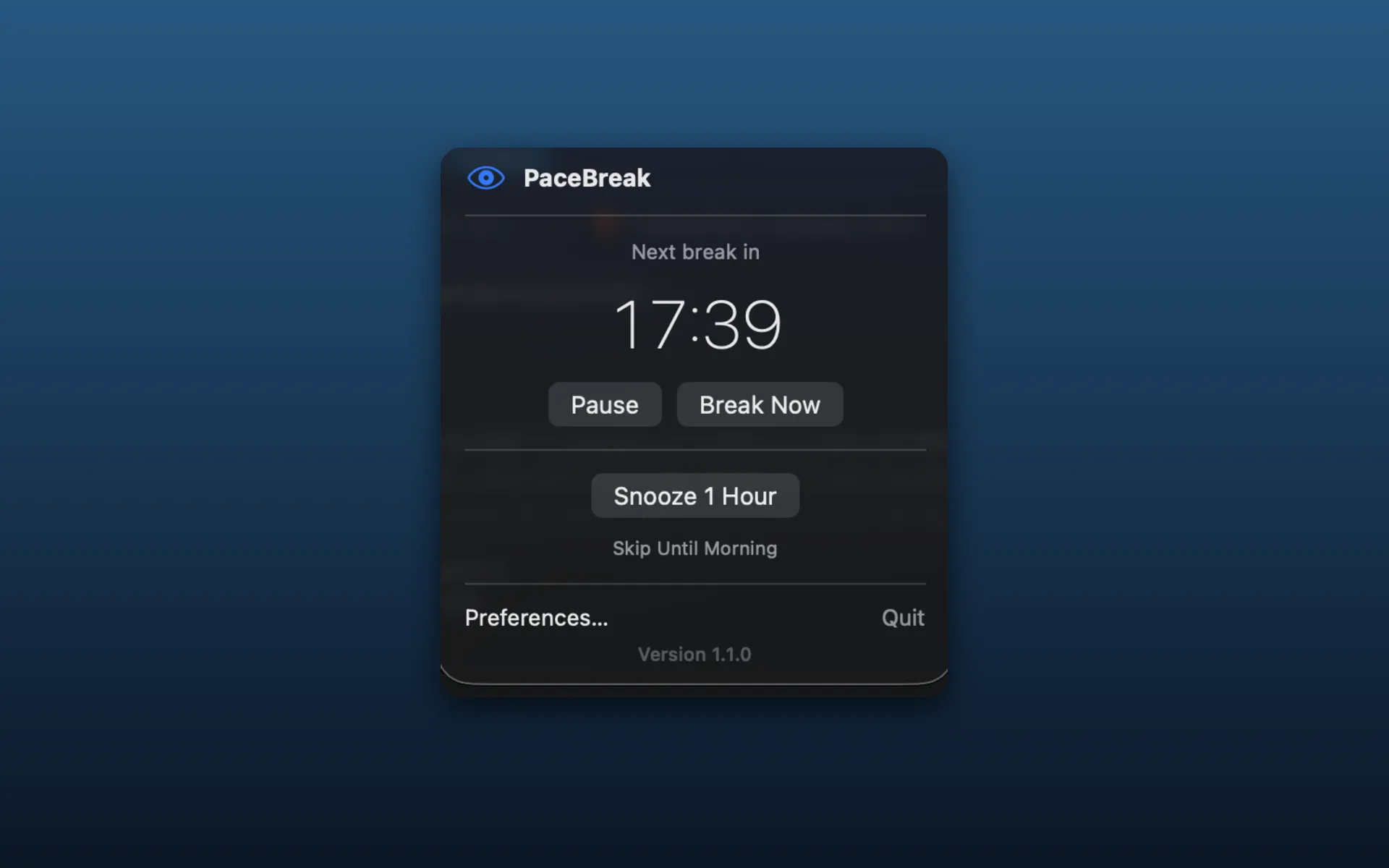
Click the icon to open the menu. Depending on the current state, you will see actions like:
- “Pause” / “Resume”: stop or restart the timer.
- “Break Now”: start a break immediately.
- “Snooze 1 Hour”: skip breaks for one hour.
- “Skip Until Morning”: stop breaks for the rest of the day.
The same menu has “Preferences…”, “Contact Support…”, and (on the direct version) “Check for Updates…”.
During a break
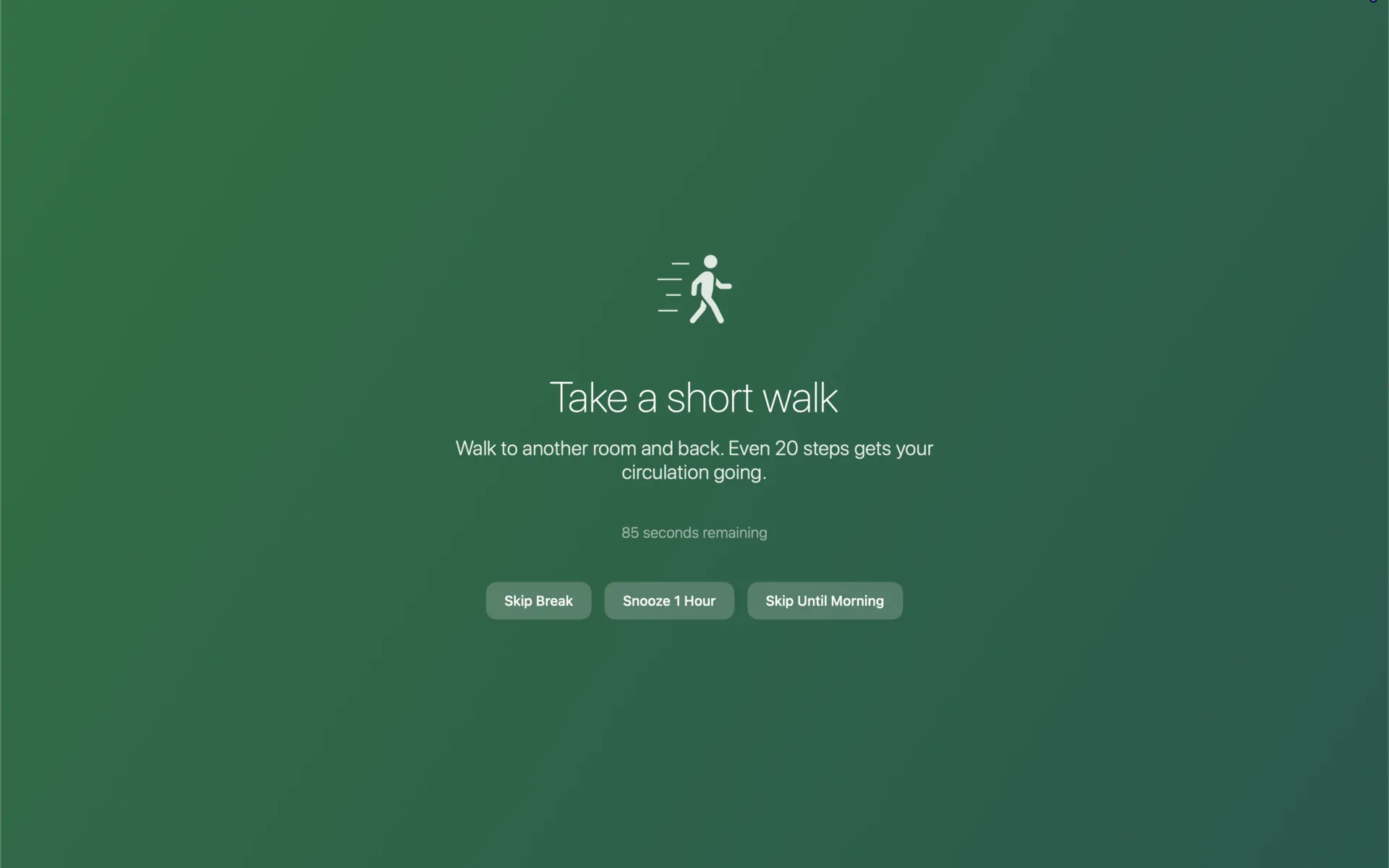
When it is time to rest, a calm full-screen overlay appears on every display with a short message and the seconds remaining. It fades away on its own when the break is over. If you cannot stop right then, use “Skip Break”, “Snooze 1 Hour”, or “Skip Until Morning”.
Automatic pause during meetings
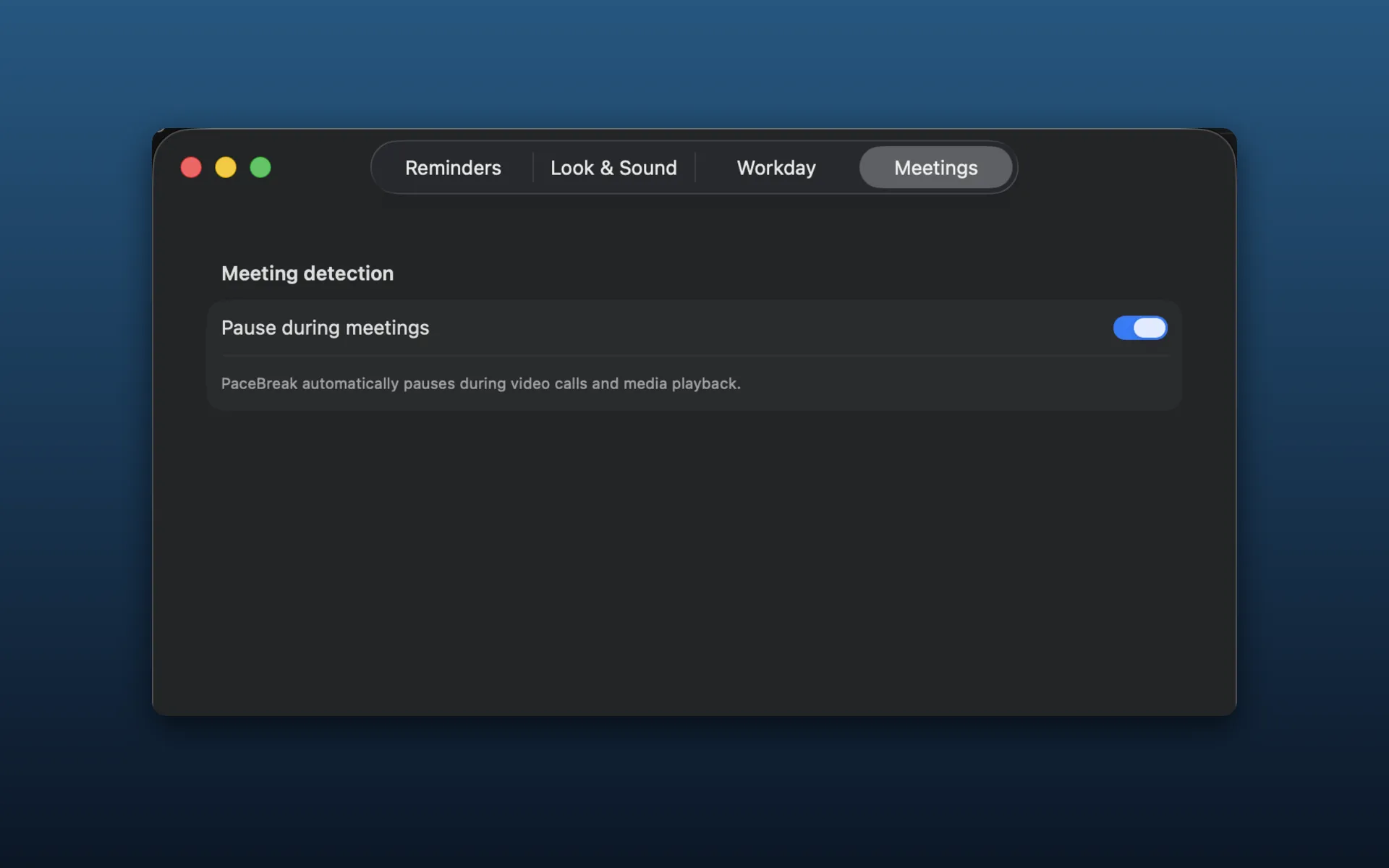
PaceBreak gets out of your way when you are busy. When you are on a call or watching a video, it pauses on its own so a break never interrupts you. This is on by default, and you can turn it off with “Pause during meetings” in the Meetings tab.
Your privacy stays intact: PaceBreak does not use your camera, does not record your screen, and asks for no special permissions. Everything happens on your Mac and nothing leaves your device. See our Privacy Policy for the details.
Preferences
Open “Preferences…” from the menu. Settings are grouped into four tabs.
Reminders
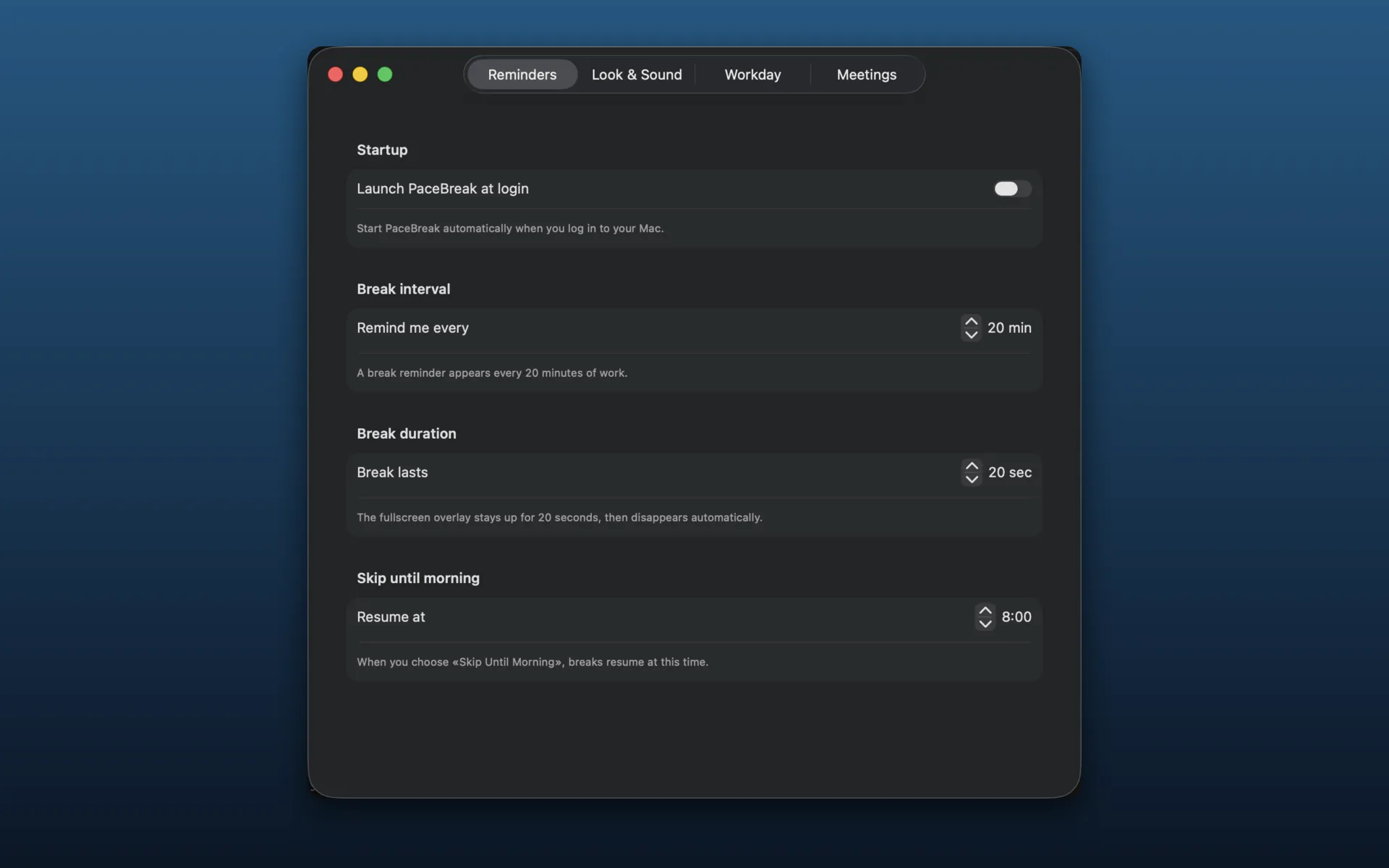
- “Launch PaceBreak at login”: start PaceBreak automatically (off by default).
- “Remind me every”: time between breaks, 1 to 120 minutes (default 20).
- “Break lasts”: how long a break is, 5 to 300 seconds (default 20).
- “Resume at”: the hour your day starts again in the morning (default 8:00).
Look & Sound
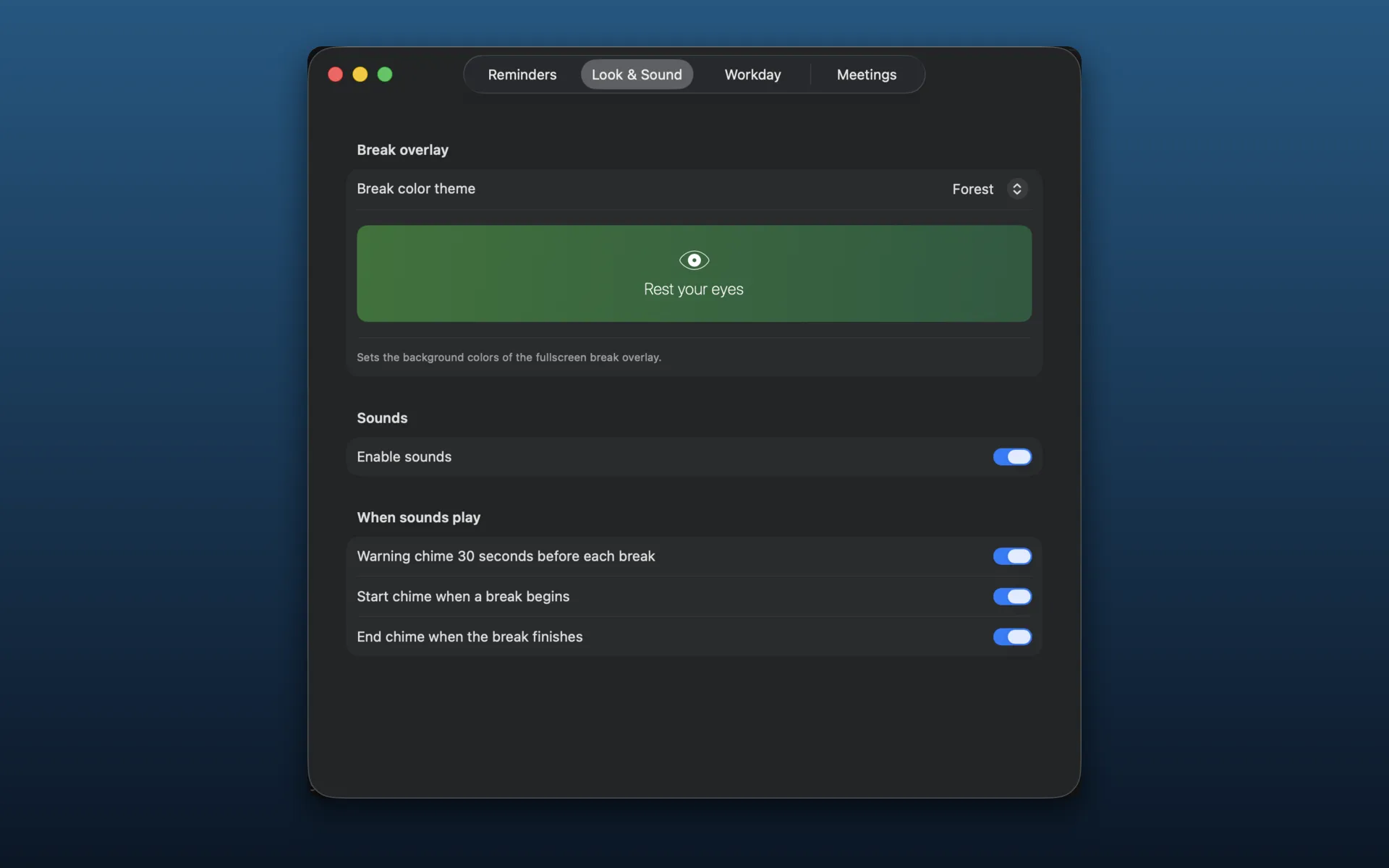
- “Break color theme”: Calm, Sunset, Forest, Slate, or Lavender (default Calm).
- “Enable sounds”: turn break chimes on or off (on by default).
- “Warning chime 30 seconds before each break”.
- “Start chime when a break begins”.
- “End chime when the break finishes”.
The three chime options only appear when “Enable sounds” is on.
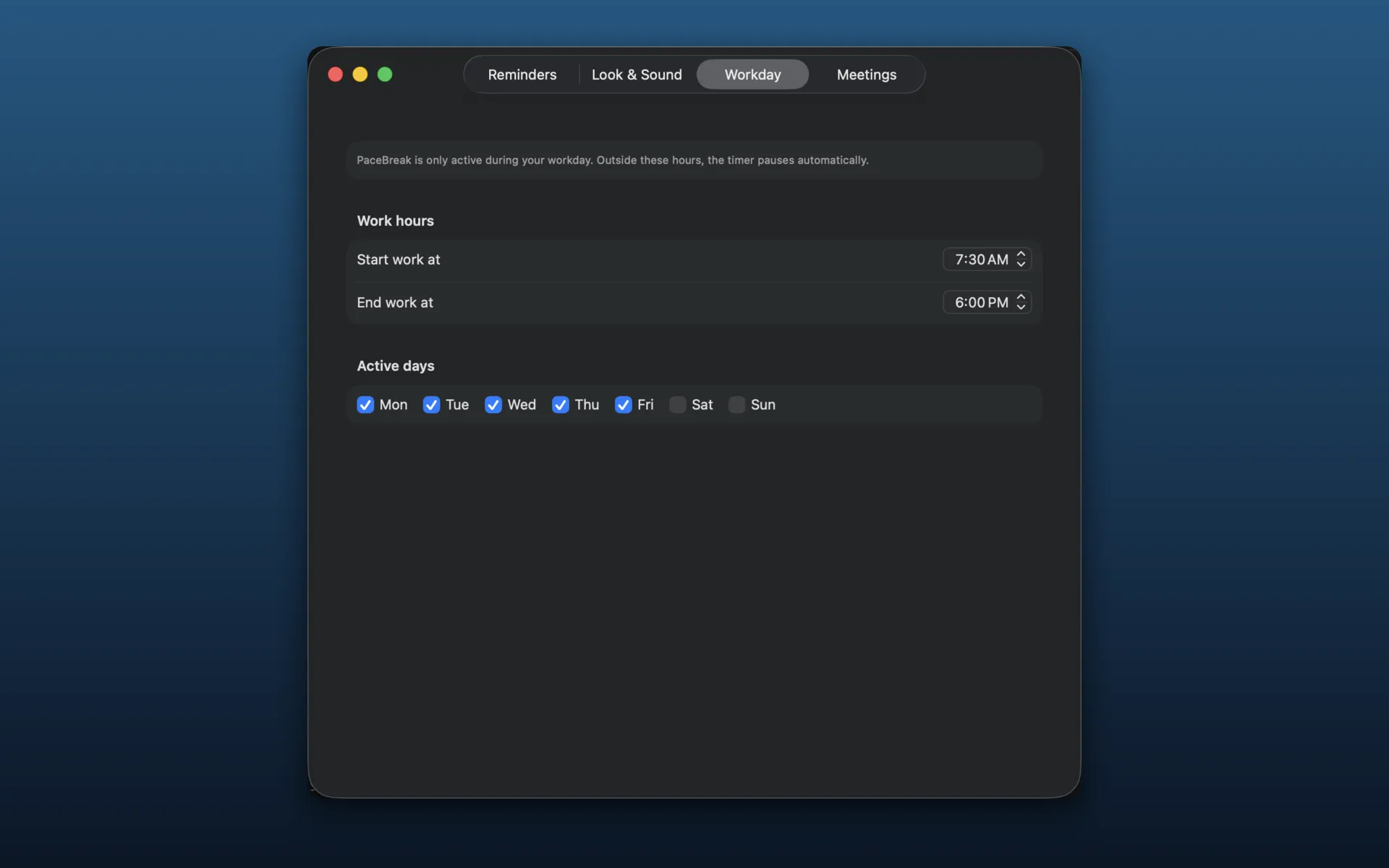
Workday
- “Start work at” and “End work at”: your working hours (default 8:00 to 18:00).
- “Active days”: which days PaceBreak runs (default Monday to Friday).
Outside your working hours and days, the timer pauses on its own.
Meetings
- “Pause during meetings”: the automatic pause described above (on by default).
System requirements & updates
- macOS 14 Sonoma or later.
- Universal app: runs natively on both Apple Silicon and Intel Macs.
- Updates (direct purchase): choose “Check for Updates…” from the menu, or let PaceBreak remind you gently when one is ready.
- Updates (Setapp): handled automatically by the Setapp app.
Troubleshooting
My license code will not activate
- Check your internet connection. Activating needs to be online.
- Make sure the whole code is entered, including every group after PBK-.
- Still stuck? Email us and we will sort it out for you.
Breaks are not appearing
- Confirm the current time falls within your working hours and active days (Workday tab).
- Check the menu in case breaks are paused, snoozed, or skipped until morning.
- If you are on a call or watching a video, PaceBreak pauses on its own. To take a break anyway, choose “Break Now”.
I did not receive my license email
Check your spam folder first. If it still has not arrived a few minutes after purchase, email support@kinspiretech.com with your purchase details and we will sort it out.
Uninstalling PaceBreak
Quit PaceBreak from its menu, then drag the app from your Applications folder to the Trash. If you would like to remove every trace, including saved preferences and license data, email us and we will send the exact steps for your setup.
Still stuck?
Email support@kinspiretech.com. Let us know your macOS version and what you were doing when the problem happened, and we will help you out.